An old laptop rarely dies. It just gets slow enough that you assume it died, shove it in a drawer, and start pricing replacements. Before you spend a single cent, work through this list in order. Each step is free, reversible, and ranked by how much speed it typically returns on the machines we put through our usual testing process. Most machines feel dramatically better after just the first three, and a surprising number of laptops written off as dead are running perfectly well two hours later.
The core thing to understand is that slowness is almost never the silicon wearing out. Processors do not get tired. What actually happens is that years of installed software, background processes, and digital clutter pile up until the machine spends all its energy on overhead instead of on you. Clear the clutter and the speed comes back. Here is how, in the order that returns the most speed for the least effort.
1. What is actually making it slow?
Two minutes here saves an hour of guessing later. Open Task Manager on Windows with Ctrl, Shift and Escape together, or Activity Monitor on a Mac, and watch it while the laptop feels sluggish. You are looking for one of three patterns, and each points to a different fix.
Either the CPU sits pinned near 100 percent, which means something is working the processor too hard. Or memory is full and the disk is churning constantly as the system frantically swaps data back and forth, which means you have run out of RAM. Or disk usage is stuck at 100 percent while the CPU sits nearly idle, which usually points to a failing or overwhelmed drive. Everything below targets one of these three, so identifying yours first tells you which steps will actually help.
| What you see | What it means | Go to |
|---|---|---|
| CPU pinned near 100% | Something is working the processor too hard | Startup programs, browser, malware and heat |
| Memory full, disk churning | Out of RAM, so the system is swapping to disk | Startup programs, browser tabs, then more RAM |
| Disk at 100%, CPU idle | The drive is overwhelmed or failing | Free disk space, then an SSD |
2. Which startup programs should you cut?
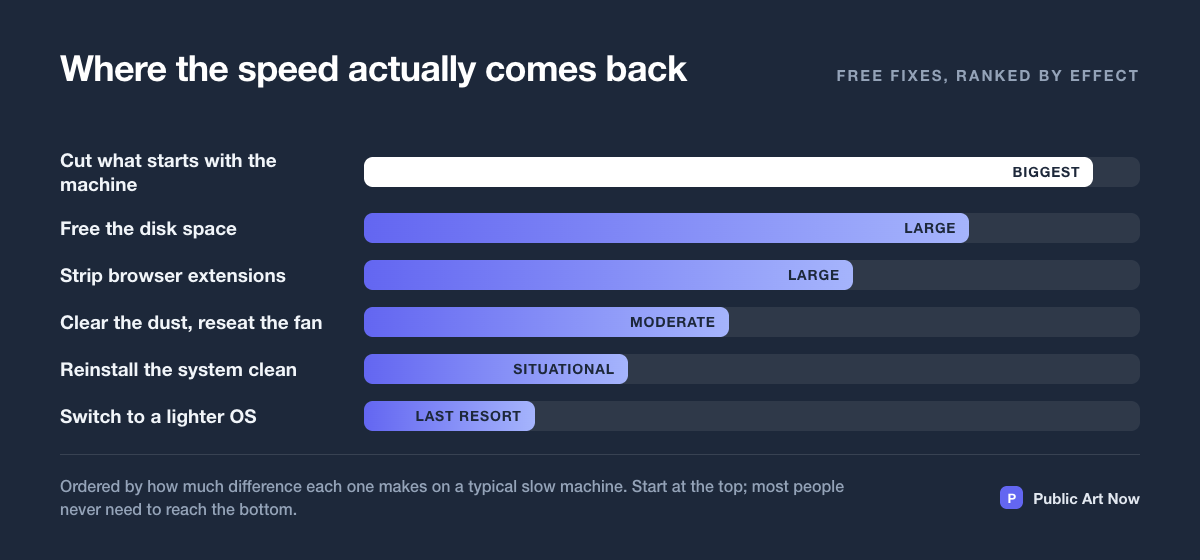
This is the single highest-value fix on most machines, and it is why so many old laptops feel transformed after ten minutes of work. Over years of installing software, your laptop accumulates a queue of programs that all insist on launching the moment it boots and then sit in the background forever: updaters, helper apps, chat clients, cloud sync for services you stopped using two jobs ago. Every one of them consumes memory and processor time you never asked to give.
In Task Manager’s Startup tab on Windows, or System Settings then Login Items on a Mac, disable everything you do not genuinely need in the first minute of using the machine. Be aggressive about it. Nothing breaks when you do this: anything you disable still opens normally when you actually launch it yourself. You are only stopping programs from starting automatically, not removing them. On a cluttered machine this alone can halve boot time and free up a meaningful chunk of memory.
3. Is your browser the real problem?
On an older machine, the web browser is usually the single heaviest thing running, and most people never think to tame it. Each open tab and each installed extension consumes real memory, and the totals add up fast. Three fixes, in order of impact:
- Remove extensions you do not actively use. Each one runs in the background of every single tab, multiplying its cost. Most people have several they forgot they installed.
- Stop living with forty open tabs, or install a tab suspender that puts background tabs to sleep and releases their memory until you click back to them.
- Turn on hardware acceleration in the browser settings so video and graphics work moves off the overloaded CPU and onto hardware built for it.
If the browser is your bottleneck, and on old laptops it very often is, these three changes can be the difference between a machine that stutters and one that feels usable again.
4. How do you free up disk space properly?
A nearly full system drive slows everything down, and the effect is brutal on machines still running an older spinning hard drive rather than an SSD. The system needs free space to work in, and when it runs low, everything grinds. But how you clear space matters as much as clearing it.
Skip the sketchy third-party “cleaner” apps entirely. They are often more harmful than the clutter they claim to remove, and many are thinly disguised adware. The tools built into your operating system are safer and just as effective. Windows has Storage Sense and Disk Cleanup; macOS has a storage recommendations panel that shows exactly what is eating space. Empty the downloads folder, clear out old system update leftovers, remove apps you no longer open, and aim to keep at least 15 to 20 percent of the drive free at all times. That headroom alone can noticeably lift performance on a cramped machine.
5. Could it be malware or overheating?
Two silent performance killers hide here, and both masquerade as general slowness. First, malware. Run a full scan with your operating system’s built-in security tools. Cryptocurrency miners and adware love old, forgotten laptops precisely because their owners are not watching, and a hidden miner will quietly consume every spare cycle your processor has. A clean scan rules this out; a dirty one often explains everything.
Second, heat. Listen to the fans during light work. A laptop clogged with years of dust cannot cool itself properly, so it deliberately throttles its own speed to avoid overheating, and that throttling feels identical to a software problem. If the fan screams during simple tasks, the machine is probably running hot. Cleaning the vents with a can of compressed air is technically hardware, not software, but it costs almost nothing and frequently returns real, measurable performance that no amount of software tweaking could recover.
Slowness is almost always accumulated software, not aging hardware. Silicon does not get tired. Operating systems just get crowded.
6. Should you just reinstall the operating system?
If the machine is still crawling after everything above, a clean reinstall of the operating system removes a decade of accumulated software sediment in one decisive move. This is the closest thing to a factory reset, and it works because it wipes away every forgotten program, broken setting, and background process that built up over years.
Back up your files first, without exception, because this erases everything. Then use the built-in reset feature your operating system provides rather than hunting for installation media. When the machine comes back fresh, resist the urge to reinstall the pile of programs you had forgotten you owned; that pile is what slowed it down in the first place. Install only what you actually use.
On genuinely old hardware, there is one more step that goes further than any reinstall of the original system. A lightweight Linux distribution designed for older machines can make a ten-year-old laptop feel genuinely current for browsing, writing, email, and video calls. It demands a little willingness to learn something new, but for a machine otherwise destined for a drawer, it is often the difference between useless and useful.
When does spending money finally make sense?
Only after the entire free list is exhausted does opening your wallet make sense, and even then the order is fixed. If the machine is still slow, the cheapest effective upgrades come first: adding more RAM if memory was your bottleneck, or swapping a spinning hard drive for an SSD if the disk was. Either of those can cost a fraction of a new laptop and deliver most of the benefit, effectively giving an old machine a second life.
A brand new laptop belongs dead last on the list, not first. Work the free steps, consider the cheap upgrades, and you will find that the majority of “dead” laptops were never dead at all. They were just buried under software they never needed, waiting for someone to dig them out.
Frequently asked questions
Why has my laptop got slower over time?
Almost never because the hardware wore out. Processors do not degrade with use. What accumulates is software: startup programs, background updaters, browser extensions, and a full disk, all competing for the same memory and processor time.
What is the single fastest fix?
Cutting startup programs. On a cluttered machine it can halve boot time and free a meaningful chunk of memory, and it takes about ten minutes. Nothing breaks, because disabled programs still open normally when you launch them yourself.
Are PC cleaner apps worth using?
No. Skip them. Many are adware in a helpful costume, and the tools already built into Windows and macOS clear the same files more safely. Storage Sense and Disk Cleanup on Windows, and the storage recommendations panel on macOS, are enough.
How much free disk space should I keep?
Aim for at least 15 to 20 percent of the drive free. The system needs working room, and a nearly full drive slows everything down, especially on machines still running a spinning hard disk rather than an SSD.
When is it finally worth spending money?
Only after the free list is exhausted, and then in order: more RAM if memory was the bottleneck, or an SSD if the disk was. Either costs a fraction of a new laptop. A replacement machine belongs last, not first.